Wedding Dashboard
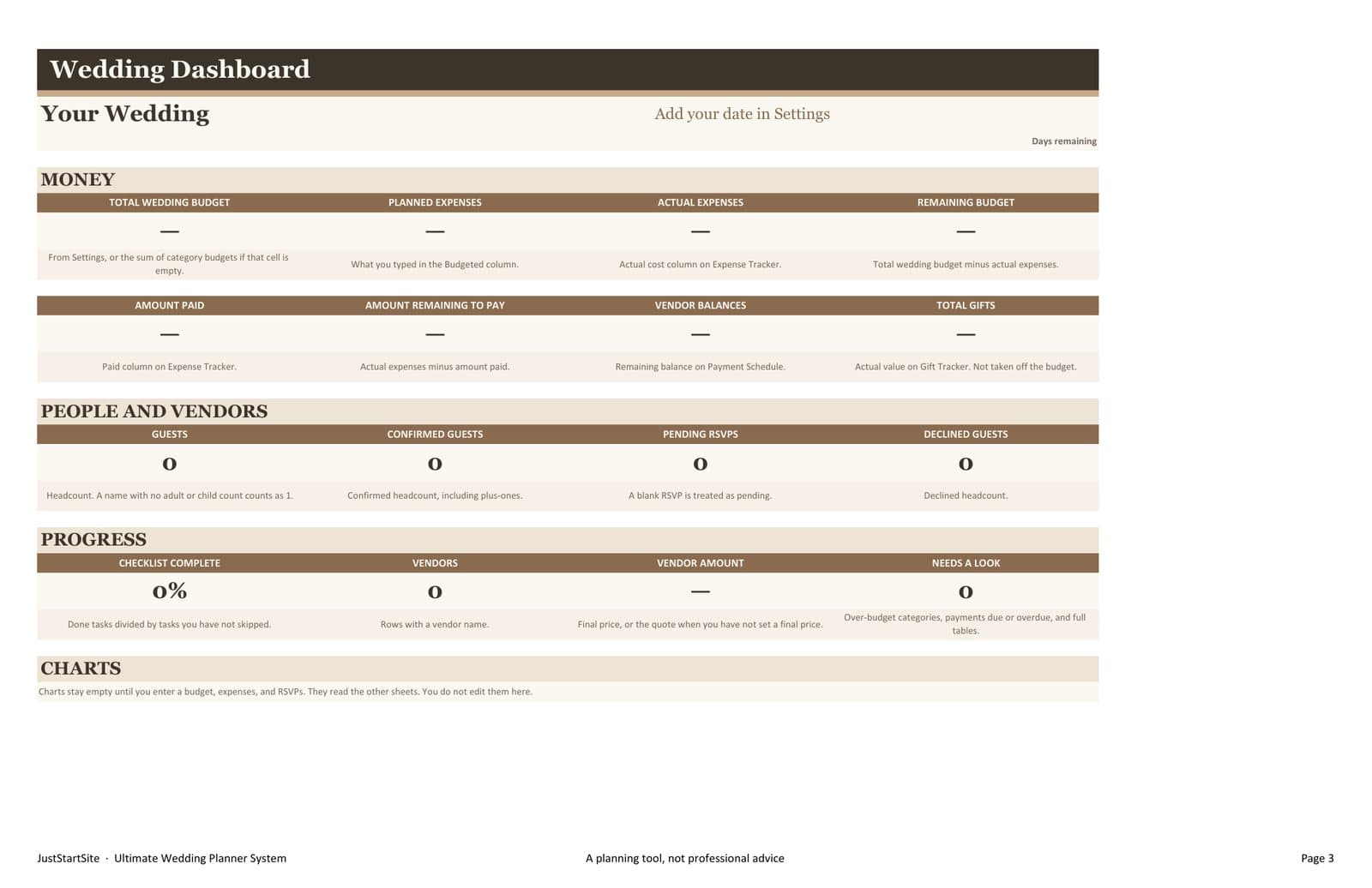
See the budget, guest counts, vendor totals, and checklist progress on one read-only page.

Wedding planning
From your first budget to the final wedding-day timeline, organize the details that matter with a complete wedding planning system designed for real couples.
Plan
Know what needs to happen and when.
Budget
Keep spending organized and visible.
Organize
Manage guests, vendors and payments in one place.
Celebrate
Spend less time worrying about details.
Most of the stress is not the celebration. It is the same facts living in too many places. A deposit in an email, a guest count in a chat, and a timeline in a document nobody can find on the morning you need it.
None of that means the wedding is out of control. It means the information has not been given one home.
One organized system for the details you need to keep track of.
Ultimate Wedding Planner System
The planner is a workbook you fill in yourselves. The dashboard reads the other sheets, so the budget, the guest count, and the checklist progress stay in one view. There are no macros and no account to create.
It opens in Excel and can be imported into Google Sheets. Cream cells are where you type. The rest of the sheet calculates from those entries.
What's included
The workbook includes a start page and a settings page as well as the sheets below. Guest names, vendor names, and amounts are empty when you open the file.
See the budget, guest counts, vendor totals, and checklist progress on one read-only page.
Give each category a planned amount and compare it with what you have actually spent.
Record each bill, what you paid, and what is still outstanding.
Keep deposits and later payments visible, with the date each one is due.
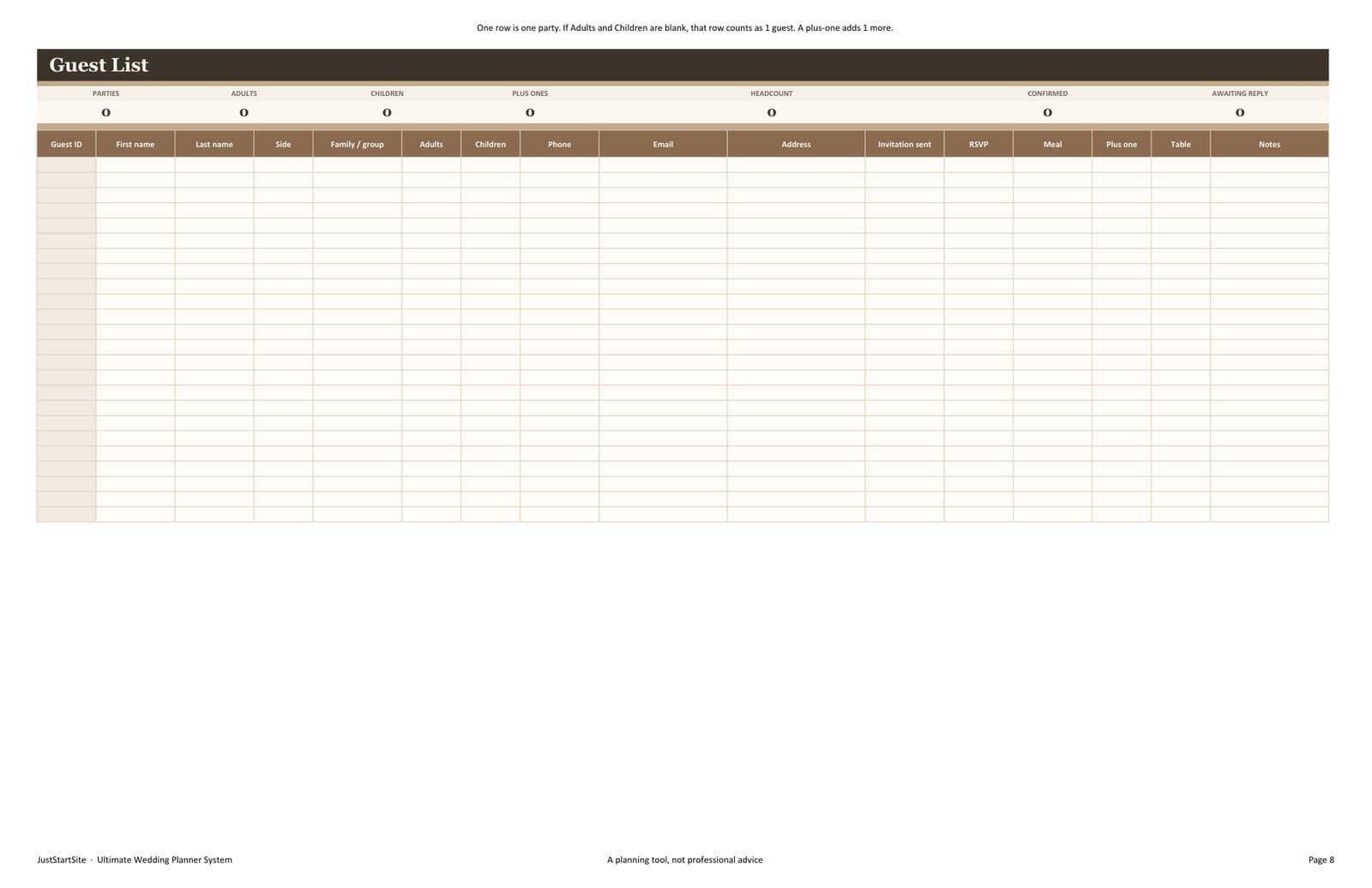
Track parties, adults, children, plus-ones, meals, and contact details in one list.
See who has accepted, declined, or not replied yet, based on the guest list.
Set a capacity for each table and assign guests without losing the count.
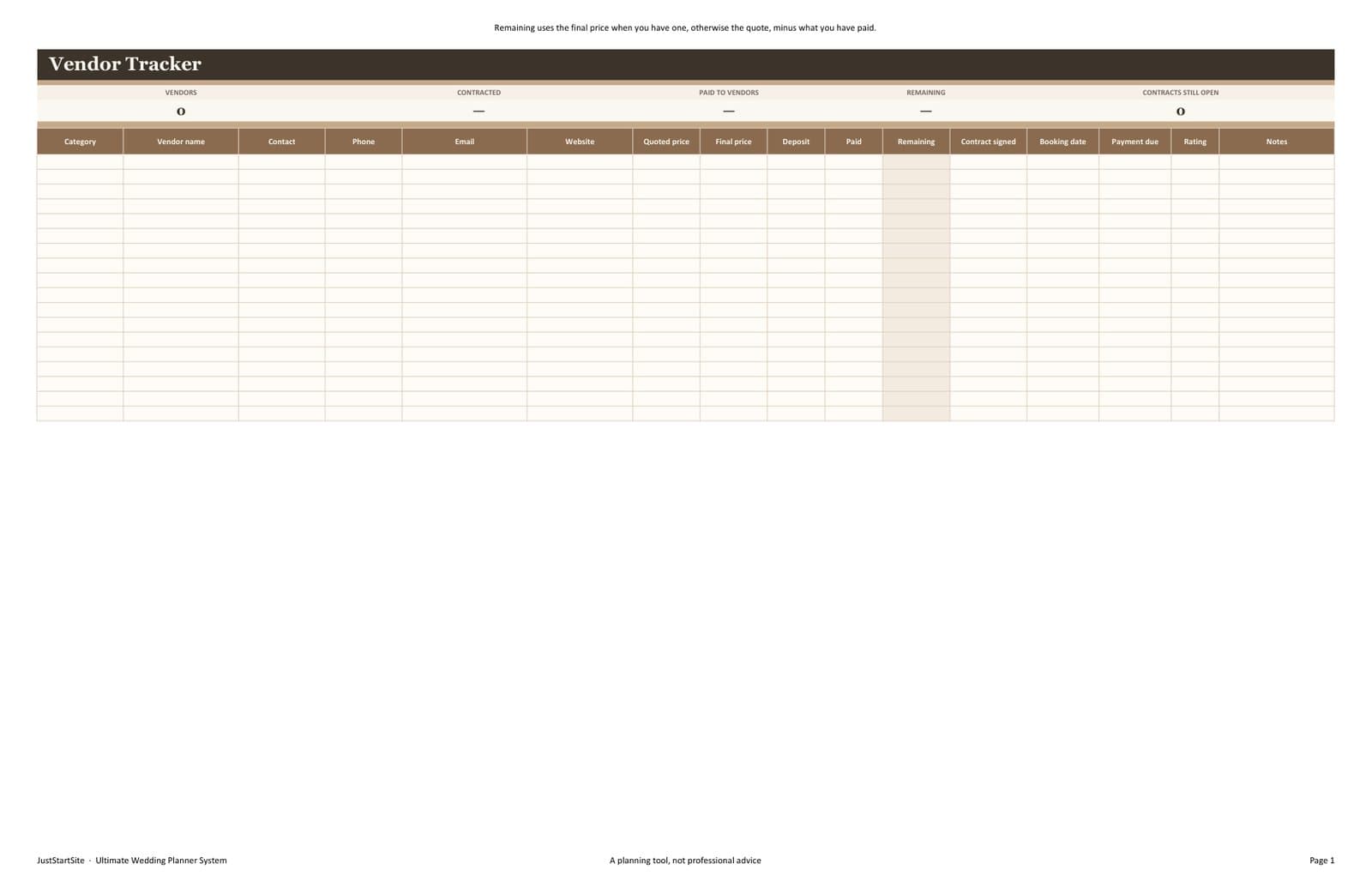
Store the contact, price, deposit, contract status, and next due date for each vendor.
Place quotes side by side before you commit to a venue, photographer, or caterer.
Work through planning tasks in order, and add the ones that are specific to your day.
A month-by-month set of tasks with suggested dates you can move.
A starter schedule for the day itself. Replace it with the times your venue and vendors need.
Keep trip costs in their own place so they are not mixed into the wedding totals.
Note what arrived and whether a thank-you has been sent.
See who still needs a note, and mark each one when it has gone out.
A place for decisions that do not belong in a budget row or a guest row.
Wedding planning guide
Wedding planning is easier when the large decisions happen in an order. The budget shapes the guest count. The guest count shapes the venue. The venue shapes the vendors, the invitations, and the day itself. You can change the order when your situation asks for it. What helps is knowing which decision the next one depends on.
A useful budget starts with the amount you can actually spend, not with a list of things you hope to include. Write that number down before you request quotes. It gives every later decision a boundary.
Split the money into categories you will really use: venue, food and drink, attire, photography, flowers, music, stationery, and a line for costs you have not named yet. The names matter less than using the same names every time you record a payment.
Continue in this sectionThe date affects the venue, the guest list, and the price. A Saturday in a popular month is often booked earlier and quoted higher than a Friday or a Sunday. If a particular date is not essential, ask venues which dates they still have before you print anything.
Check the calendar around the date: public holidays, school terms, and trips your closest guests already have planned. Then put the date in one place and use it for the timeline, the invitations, and the payment due dates.
Build the list as households, not as a pile of first names. A household might be two adults, one adult and a child, or a guest who may bring someone. Decide the rule for plus-ones before you start inviting, so you are not inventing it in the replies.
Keep one list. If the same person is in a notes app, a spreadsheet, and a group chat, the counts will drift. When someone is added or removed, change that one list and let the invitation count and the seating count follow it.
Continue in this sectionVisit with a short list of questions: guest capacity, what is included, what you must hire separately, the latest end time, rain cover, and when the deposit and the balance are due. Ask for those answers in writing.
Compare venues on the same points. A lower room fee can cost more once catering, furniture, and overtime are added. Write the full figure next to each option before you decide.
Book the vendors whose dates fill first: the venue, then photography, catering, and music if those matter to you. Flowers, stationery, and transport can often wait until the guest count is more stable.
For each vendor, keep the contact, the quote, what the quote includes, the deposit, and the date the balance is due. A quote you cannot find later is not a decision you can defend.
Continue in this sectionSend invitations when the date, venue, start time, and reply date are settled. Include how to reply, whether children are invited, and any detail a guest needs in order to attend, such as dress or transport.
A photo invitation can be printed or sent digitally. Either way, the wording should match the guest list: the same names, the same date, and the same reply instructions.
Continue in this sectionGive guests a reply date that leaves you time to confirm catering and seating. Record each reply against the household, including how many adults and children are coming and any meal note the caterer asked for.
Treat a missing reply as pending, not as a yes. A week or two before the reply date, follow up with the households that have not answered. Update the same list you used to invite them.
Write the order of the ceremony in the sequence guests will see: arrival, processional, readings or rituals, vows, and recessional. Note who walks, who speaks, and where people stand.
Share that order with the officiant and with anyone responsible for music. A one-page order is more useful on the day than a long message thread.
Decide the shape of the reception before you design the timeline: drinks, meal, speeches, first dance, and when the evening ends. The venue’s end time is the constraint. Build backward from it.
Confirm the meal count from the guest list, not from memory. If the caterer needs a number several days ahead, put that deadline on the payment and task list so it is not missed.
A wedding-day timeline is a schedule other people can follow. Include getting ready, travel, ceremony start, photographs, reception start, speeches, and the time you must leave the venue.
Send the relevant portion to each vendor. The photographer needs the portrait window. The caterer needs the meal time. The full document can stay with you and with one person who is helping run the day.
Continue in this sectionKeep honeymoon costs separate from the wedding budget unless you have decided they come from the same pool of money. Flights, a place to stay, and travel insurance are easier to review on their own.
If you are leaving soon after the wedding, book the transport from the venue before the final week. Passports, names on tickets, and check-in times belong on the same list as the wedding-morning tasks.
In the last week, confirm the final headcount, the payments still due, and the arrival times with each vendor. Pack ceremony items, cards, and an emergency kit the day before, not the morning of the wedding.
Read the wedding-day timeline once with the person who will help you. Change anything that no longer matches the venue or the vendor calls. Then stop adding new projects.
Wedding costs vary by city, guest count, and what you choose to spend on. A percentage you saw online is not a rule for your wedding. The workbook does not give financial advice. It gives the columns a budget needs so you can see your own numbers.
Start with the total amount available.
Separate committed expenses from estimated expenses.
Create categories you will actually use.
Track deposits as soon as they are paid.
Track the remaining balance on each commitment.
Leave room for unexpected expenses.
Review actual spending regularly, not only at the end.
The figures below show how the columns relate. They are not suggested prices, and a dash means the final cost is not known yet.
| Category | Budgeted | Estimated | Actual | Paid | Remaining |
|---|---|---|---|---|---|
| Venue | 8,000 | 8,400 | 8,200 | 2,000 | 6,200 |
| Catering | 6,500 | 6,100 | — | 500 | — |
| Photography | 2,200 | 2,400 | 2,400 | 600 | 1,800 |
| Flowers | 900 | 750 | — | 0 | — |
In the Wedding Budget sheet, planned amounts live by category. The Expense Tracker is where each bill and each payment is recorded. The Payment Schedule shows what is still due. The honeymoon has its own sheet so a trip is not added into the wedding total unless you also enter it as a wedding expense.
A name on its own cannot tell you how many meals to order, who has replied, or who is bringing a guest. Those facts change, and they change the budget and the seating when they do.
One structured list reduces the mistakes that come from copying people between notes. When a household declines, the invitation count, the meal count, and the table plan can all be checked against the same row.
Invite from the guest list, so every household you send to is a row you can update.
Record yes, no, or still waiting. A blank reply is not a confirmation.
Count them separately when the venue or caterer prices them differently.
Decide the rule first, then mark which households it applies to.
Collect only what the caterer needs: a choice, an allergy, or both.
Assign tables after most replies are in, and check the count against the table size.
Keep a phone number or email on the row you will use for the reminder.
In the workbook, one row is one party. If the adult and child counts are left blank, that row counts as one person. A plus-one adds one more. A blank RSVP stays pending until you record a reply.
Vendor details get lost when the quote is in one inbox, the contract is in another, and the deposit date is only in a calendar reminder. The useful record is short: who they are, what they charge, what you have paid, and when the rest is due.
Comparison comes before the contract. Put two or three quotes next to each other and note what each one includes. A lower price that excludes overtime, delivery, or a second shooter is not yet the lower price.
The Vendor Tracker holds the contact, price, deposit, and due date. Vendor Comparison is the sheet for quotes you have not accepted yet. Payments you have scheduled stay on the Payment Schedule, separate from the expense rows, so a future balance is not confused with money already spent.
This is a working order, not a rule. A long engagement can spread the early tasks. A short one can compress them. Move anything that depends on a vendor's own deadline.
Your timeline should be adjusted to your wedding date, venue and planning needs.
The workbook includes a 12-month timeline with suggested dates, and a wedding-day timeline with a starter schedule. Both are meant to be edited. The day-of schedule is not your day until you replace it.
Wedding Photo Invitation Bundle
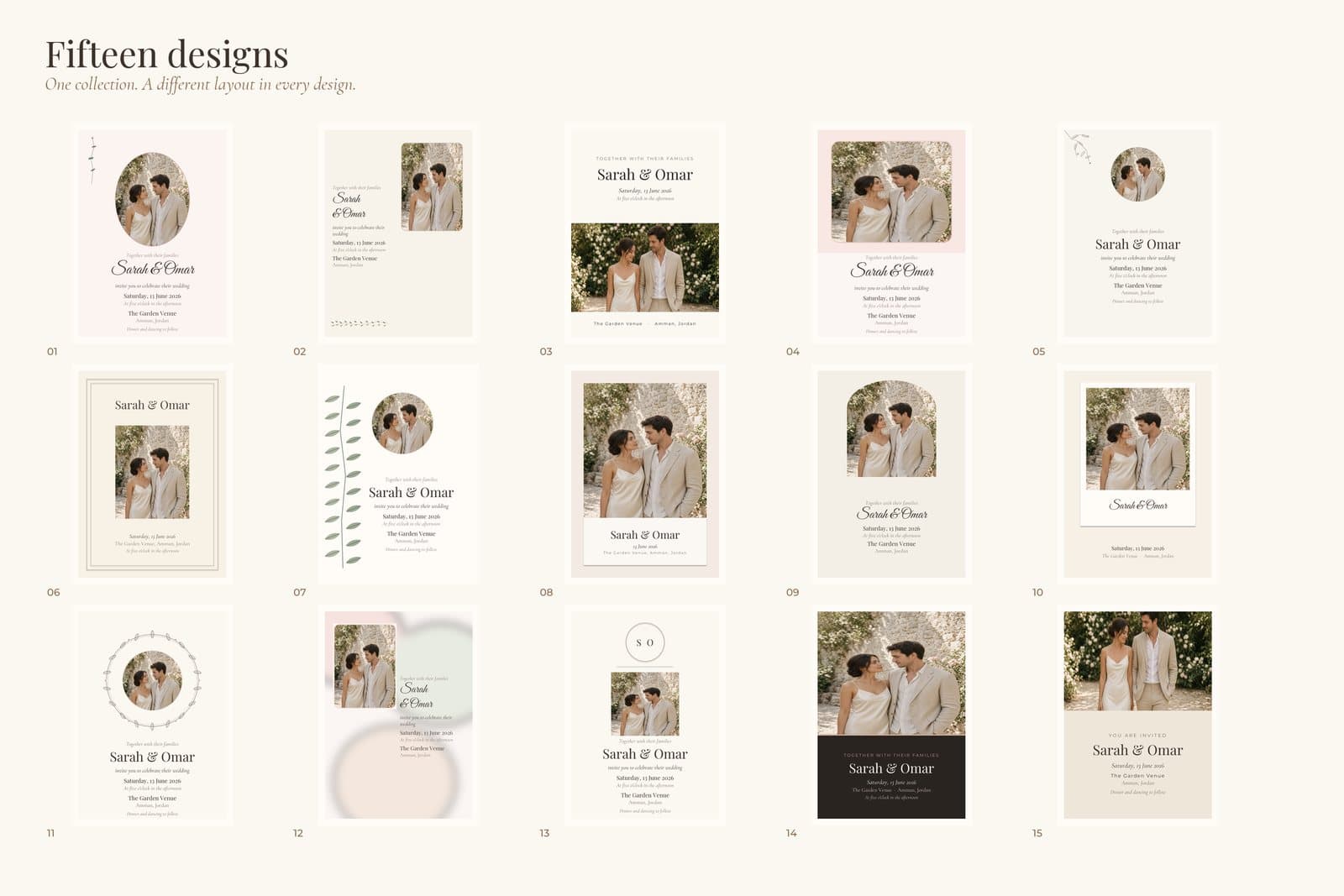
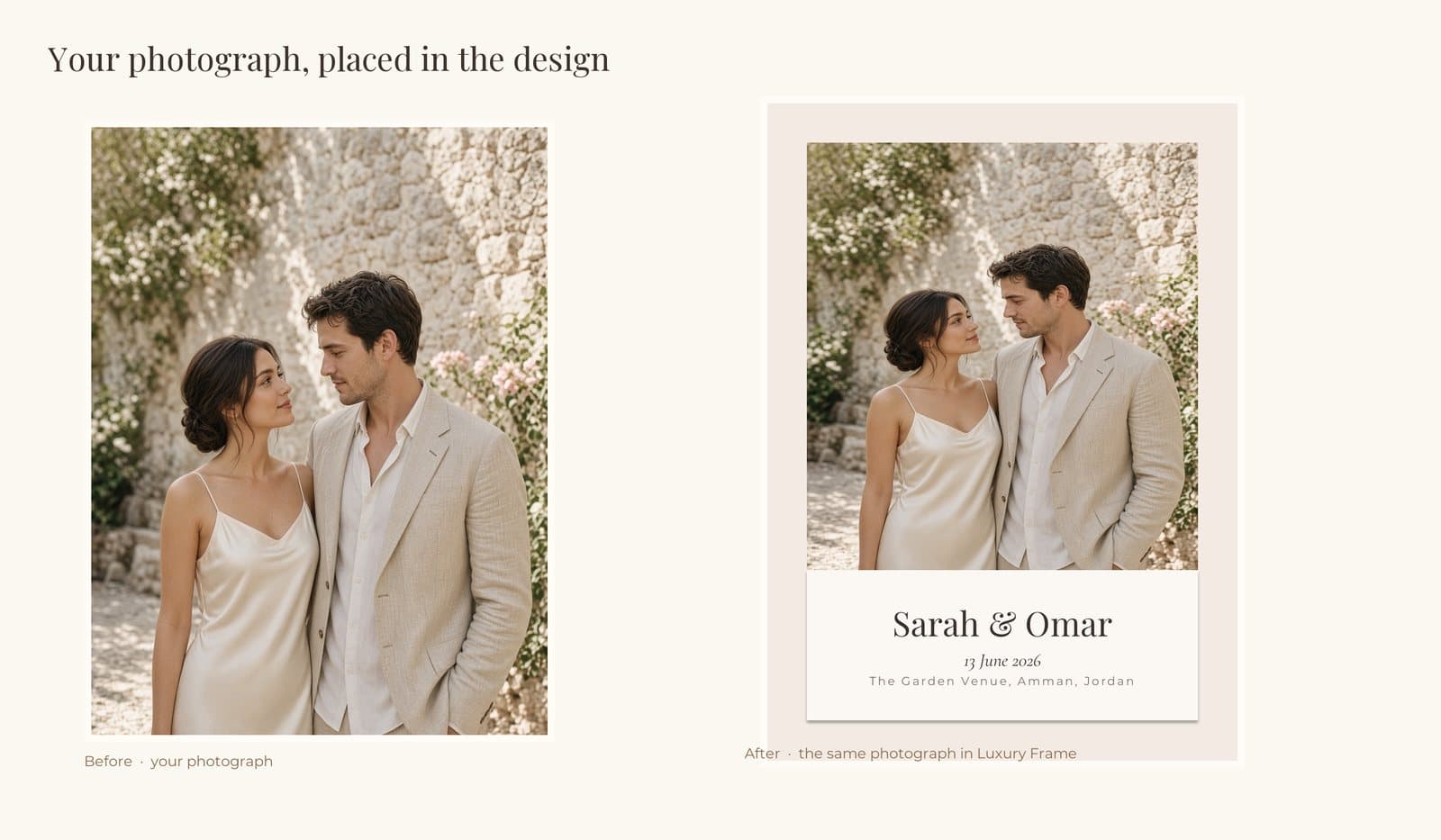
Choose an elegant design, add your favorite couple photo, personalize your names and wedding details, then export your invitation for digital sharing or printing.
The files are editable in PowerPoint and can also be imported into Canva. They are not native Canva templates. The names, date, and photographs in the previews are examples.
The planner is a spreadsheet you fill in. The invitation bundle is a set of files you edit, then export. These four steps are for the invitations.
01
Pick one of the fifteen invitation layouts and use the matching cards so the set feels consistent.
02
The templates are PowerPoint files. Open the file that matches the card size you need.
03
Replace the example names, date, and venue, then change the photograph named Couple photo.
04
Export a PDF for a printer, or a JPG or PNG to send. Print at 100 percent. The files do not include a bleed.
These images are exported from the planner workbook and the invitation files. The planner screens show the sheets before your own names and amounts are added.
SAVE 33%
Bring your budget, guests, vendors, payments and timeline into one organized system.
The download is an Excel workbook and a user guide. The workbook has a start page, a dashboard, and sheets for the budget, expenses, payments, guests, RSVPs, seating, vendors, vendor comparison, checklist, 12-month timeline, wedding-day timeline, honeymoon, gifts, thank-you notes, and a notes page. Guests, vendors, and amounts are left blank for you to fill in.
No. You type in the cream input cells. Beige cells are formulas, and the dashboard is read-only. Sheets are protected with no password so a formula is harder to overwrite by accident. If you need more rows than the sheet provides, the user guide explains how to unprotect the sheet and copy the last formula row down.
Yes. You can edit category names, checklist tasks, dates, and the wedding-day schedule. You can change the currency format on the amount columns. Hidden helper columns on the Guest List and Vendor Tracker feed the dashboard, so those columns should stay in the file.
You can import the workbook with File, Import, Upload, and replace the spreadsheet. There are no macros. Dropdowns and formulas come with the file. If a chart looks wrong after import, the numbers it uses are still on the dashboard, and the chart can be recreated from those cells. Month names follow the language of your Google Sheets account.
Yes. The sheets are set up for printing, and you can also print a PDF of the view you need. The wedding planning guide that comes with the planner is a separate PDF you can print and write in.
The Wedding Photo Invitation Bundle is a separate download. It includes fifteen invitation designs and matching cards: save the date, reply, details, thank you, menu, table number, place card, welcome sign, and an Instagram story. The names and photographs in the files are examples. Replace them before you print or send anything.
Yes. In PowerPoint, open the Selection Pane, select the picture named Couple photo, and choose Change Picture. Oval, circle, and arch looks are a frame placed over that picture, so select the photograph rather than the frame. Then crop until the faces sit where you want them.
You can upload the PowerPoint file into Canva and edit it there. These are not native Canva templates. Canva may substitute a font or shift a frame. The families used are Playfair Display, Cormorant Garamond, Montserrat, and Great Vibes. If a font changes, select the text and choose it again.
Both are digital downloads. Nothing is printed or shipped by JustStartSite. You print invitations yourself, or export an image to send.
After checkout, the files are delivered from the purchase page. This website does not host the download. Buy Now uses the checkout address set in the site configuration.
Each product is for one couple and one wedding. You may fill in the planner and edit, print, or share the finished invitations. You may not resell the files, post the original editable files publicly, or sell a modified version as a template.
The planner opens in Excel 2019, Excel 2021, Microsoft 365, and Google Sheets. The invitations open in PowerPoint. You can also import those PowerPoint files into Canva. Install the included font files if the type does not match the previews.
Start with one organized place for the details that matter.